

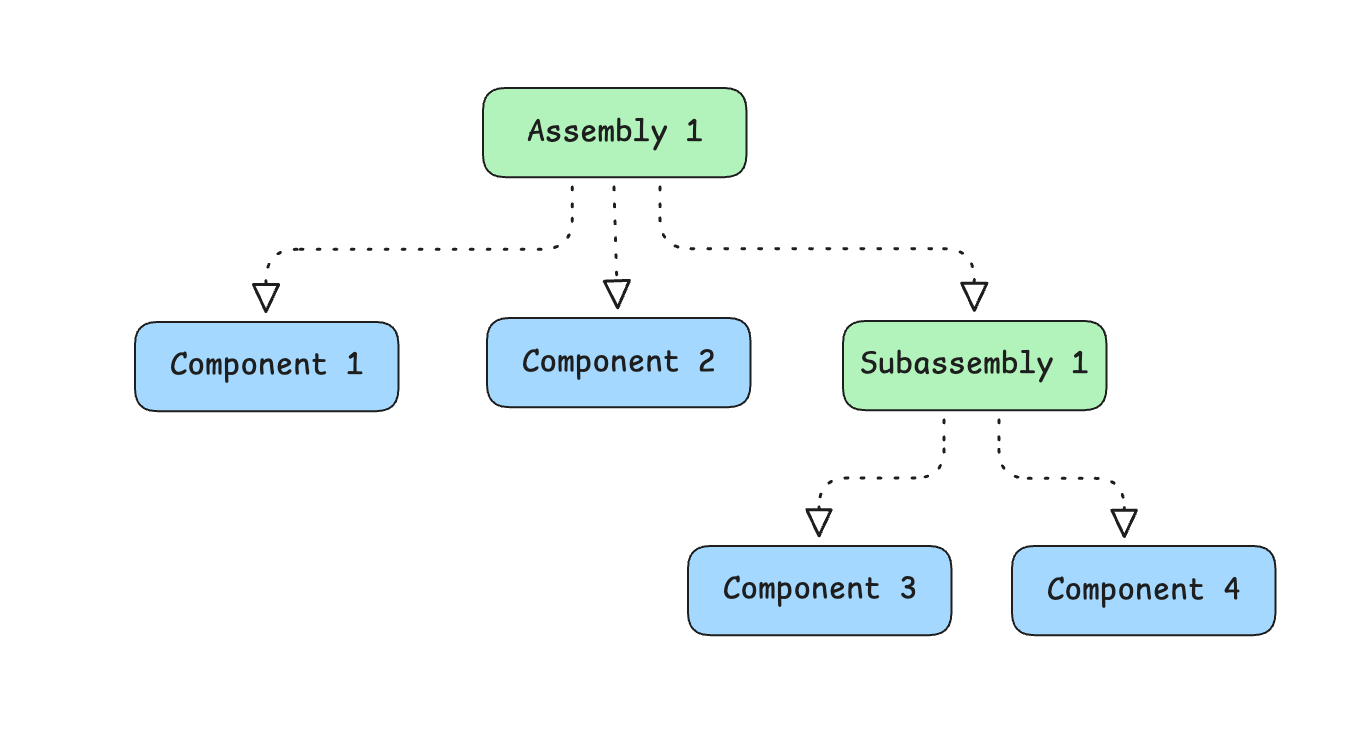
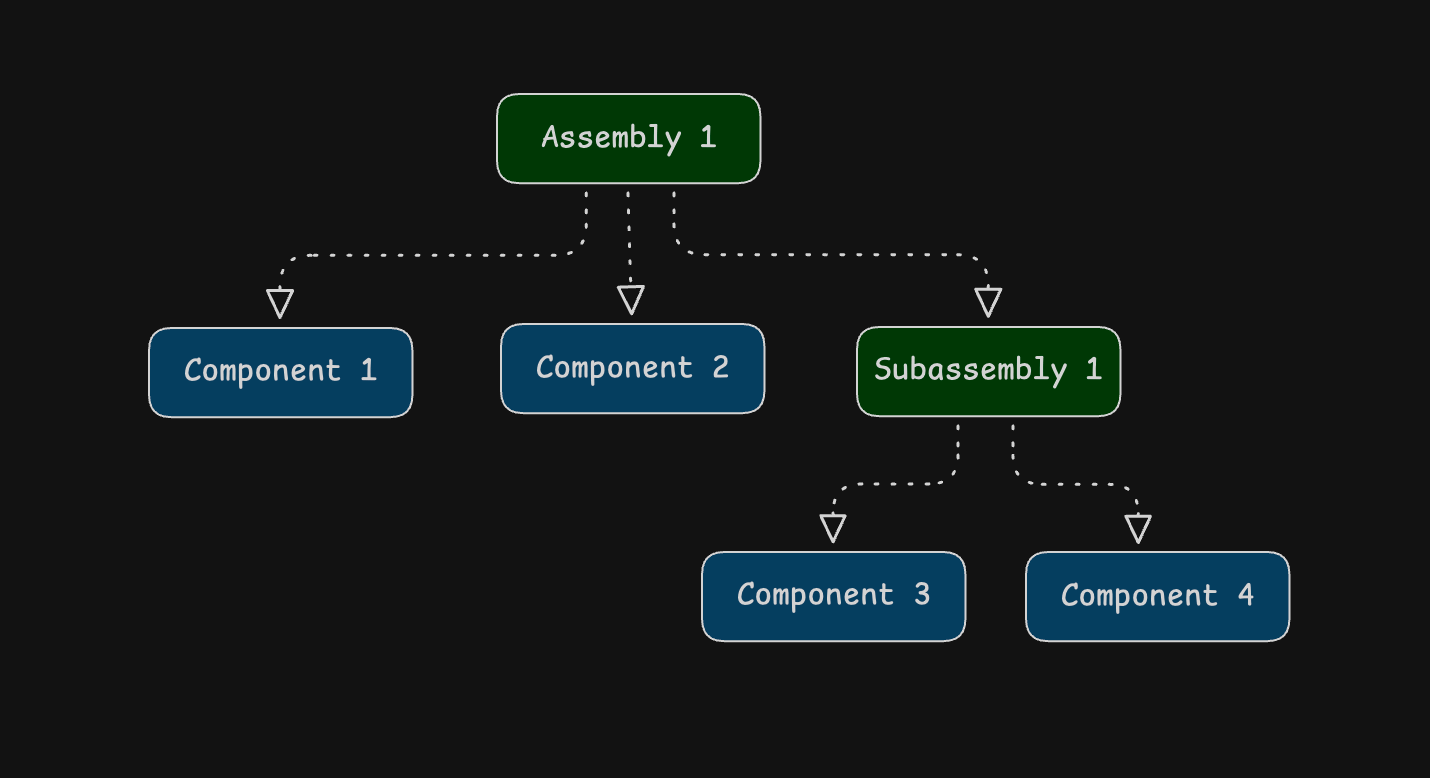
Create an assembly
Create the component asset types first. See Manage assets.- Open the form to create an asset type.
- Enter a name.
- Change the type from Component to Assembly. The Sub-components section opens.
- Press Add sub-components.
- Search for an asset type and select it. Set the quantity with + and −.
- Repeat steps 4 and 5 for each part.
- Press Create.
Change the parts
- Open the assembly asset type.
- Open Menu.
- Choose Edit sub-components.
- Add a part, remove a part, or change a quantity.
- Press Save.
Crane example
A tower crane for the Portugal job is one asset type. The parts you manage are the mast sections, the jib, the counterweights, and the hook block.- Create an asset type for each of those parts. Leave each one as Component.
- Create an asset type named for the tower crane. Set the type to Assembly.
- Add the parts under Sub-components, with the quantity of each part on one crane.
- Book one placeholder for the tower crane type on the allocation order. See Placeholders.
- On the transport order to site, add that assembly. The load lists the component lines, with the quantity from the assembly.