

Link a date
- Open the project, work order, allocation order, or transport order.
- Select the start date or the end date. The menu title is Select date.
- Press the Link date control. The title changes to Link date.
- Choose the record type: Projects, Work Orders, Allocation Orders, or Transport orders.
- Choose the record.
- Choose the date on that record: start or end.
- Press Enter.
Add an offset
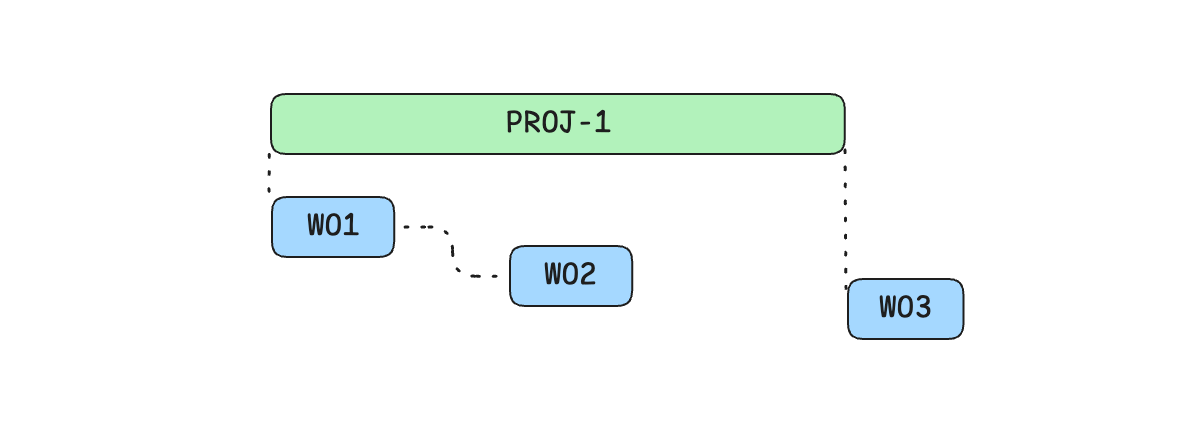
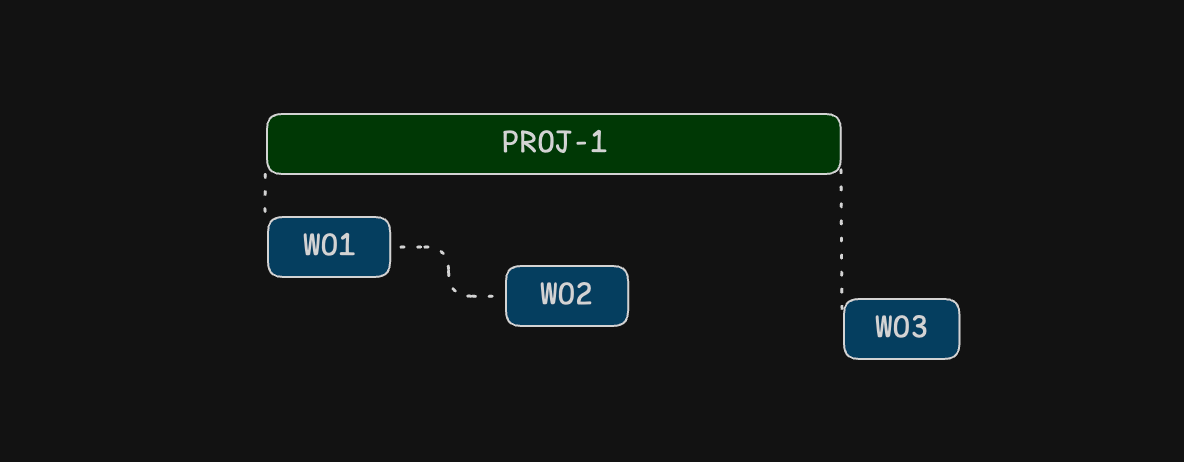
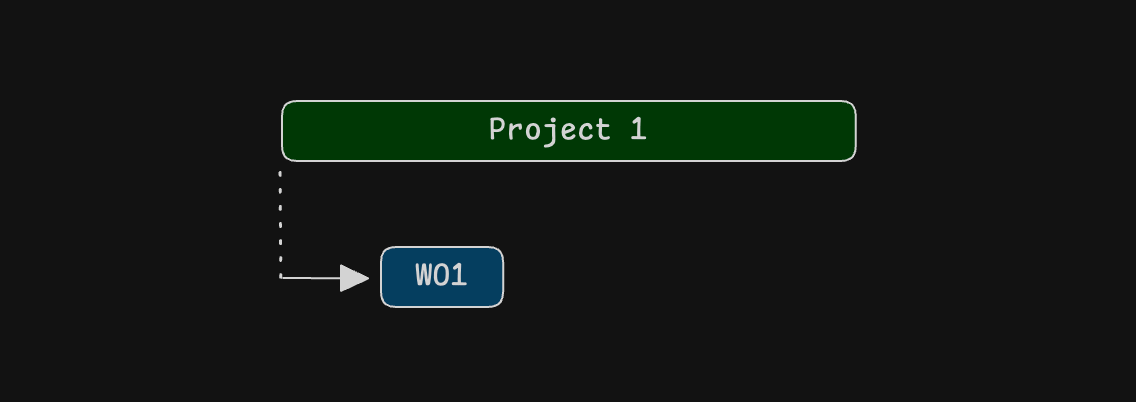
An offset moves the linked date by a set amount. The climb can start one month after the project starts. The dismantle can start when the project ends, with no offset.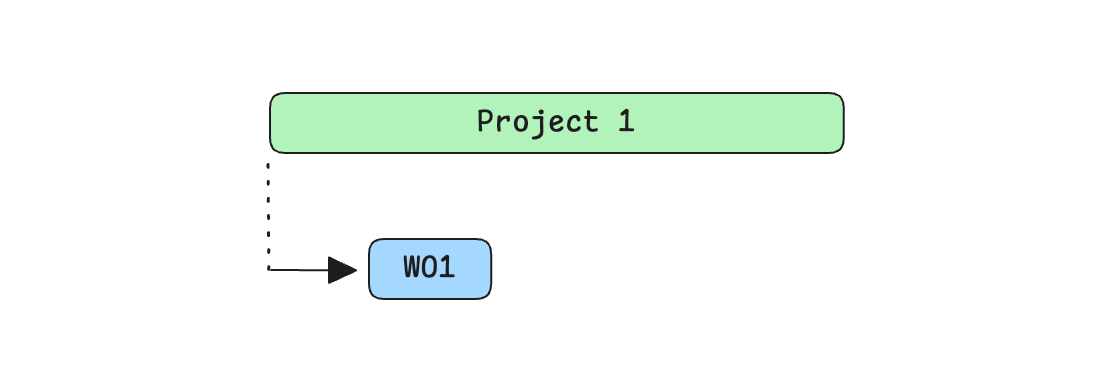
- Follow Link a date through step 6.
- Press Shift + Enter. The footer shows this shortcut as for offset.
- Set the amount with the left and right arrows. A positive amount is after the source date. A negative amount is before it.
- Set the unit: Minutes, Hours, Days, Weeks, Months, or Business Days.
- Press Enter.
Remove a link
- Open the date. The menu title is Linked date.
- Press Remove link.
Cycles
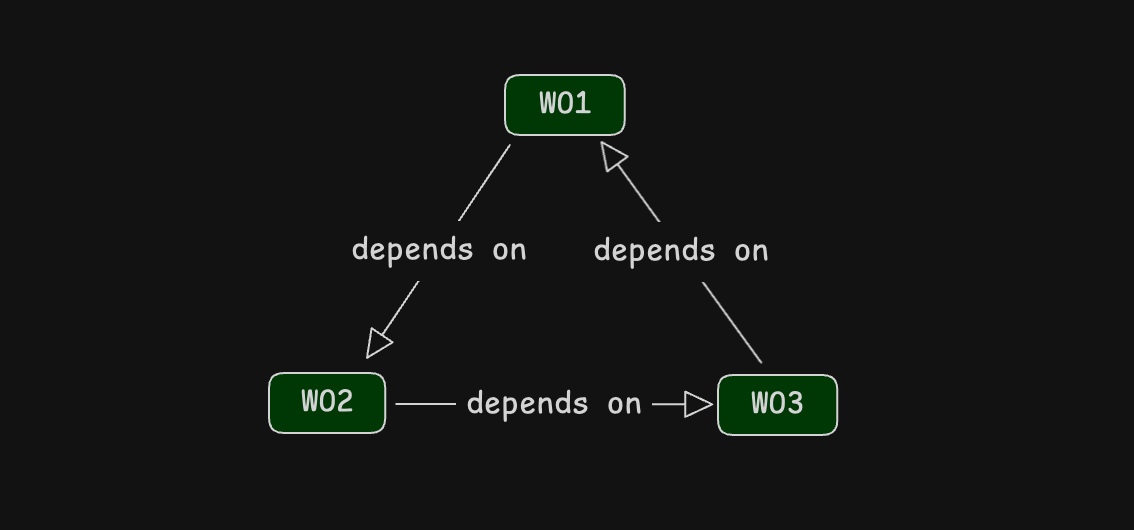
A cycle is a loop. The install starts when the climb starts, the climb starts when the dismantle starts, and the dismantle starts when the install starts. That loop is not a valid schedule.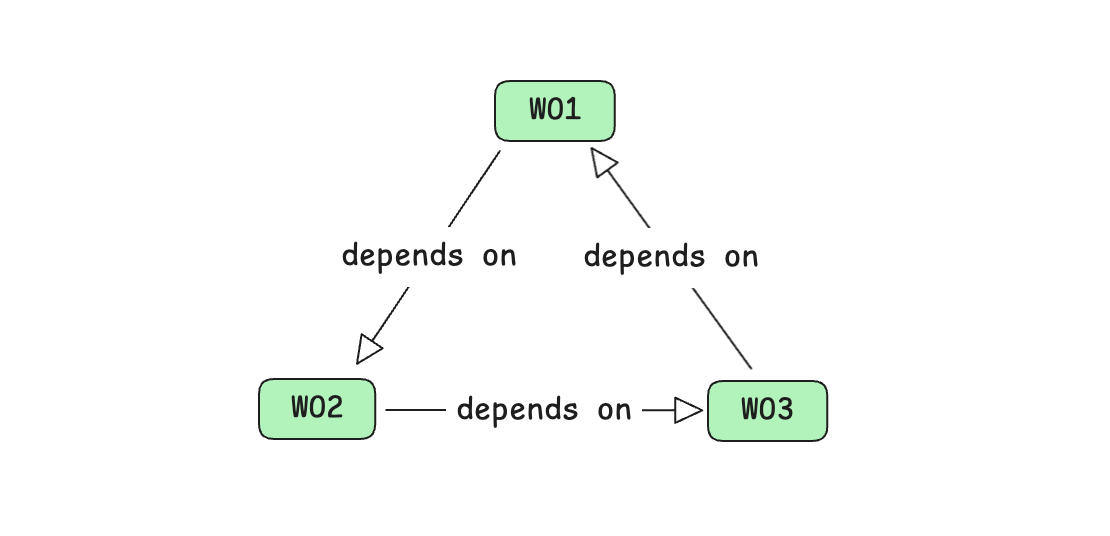
Crane example
A tower crane stays on a site from 1 January to 31 March. The job has three work orders: install, climb, and dismantle. The climb starts one month after the project starts. Fifty crane parts are on site for the whole job. Four tower sections arrive for the climb.- Create the project. Set the start to 1 January and the end to 31 March.
- Create the install work order. Link its start to the project start.
- Create the climb work order. Link its start to the project start, with an offset of 1 month.
- Create the dismantle work order. Link its start to the project end.
- Create the allocation order on the project. Link its start to the project start, and its end to the project end.
- Add the 54 parts to the allocation order. Each line follows the allocation order dates while Dates linked is on.
- For the four tower sections, right-click the line and turn Dates linked off. Drag the line on the allocation timeline so it starts with the climb work order. Those dates stay on the days you set.
- The install work order, the climb work order, and the allocation order move with it.
- The 50 lines that still have Dates linked on move with the allocation order.
- The four tower sections stay on the days you set in step 7.